
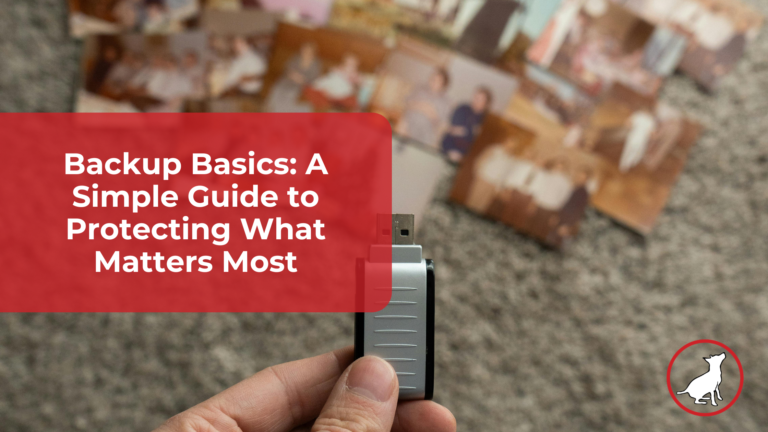
In today’s digital world, our photos, documents, and memories often live on our phones and computers. From family pictures to tax returns, so much of what matters exists as digital files.
But what happens if your device stops working, gets lost, or is infected by malware?
That is where Backup Basics come in. The good news is that Backup Basics are simple to understand and easier to set up than most people think.
At Little Dog Tech, we believe technology should feel balanced and manageable, not overwhelming. Let’s walk through it together.
What Are Backup Basics? (Plus a Simple Explainer Video)
Backup Basics start with one simple idea.
A backup is a copy of your important files stored somewhere safe.
Think of it like making a photocopy of an important document. If something happens to the original, you still have the copy.
When you understand Backup Basics, you protect yourself from losing years of memories in a single moment.
If you would like a quick, non-technical overview before diving deeper, this short video explains the big picture:
The video was originally recorded under the EAS brand, but the concepts apply directly to Little Dog Tech clients. It explains what backups are, why they matter, and the different ways people protect their data in clear, everyday language.
The Two Core Parts of Backup Basics
When learning Backup Basics, it helps to understand the two main categories of protection: local and cloud.
1. Local Backups
A local backup is a copy of your files saved to a device you physically own, such as:
-
An external hard drive
-
A larger USB storage device
You connect it to your computer and copy your important files onto it, or set it up to run automatically.
Why local backups matter:
-
Fast recovery
-
No internet required
-
One-time hardware purchase
However, if your computer and your external drive are in the same location during a fire, flood, or theft, both could be lost. That is why Backup Basics often include a second layer of protection.
2. Cloud Protection: Sync vs. True Backup
This is where many people get confused.
Not all cloud solutions are actually backups.
Sync Services (Google Drive, Dropbox, OneDrive, iCloud)
These services are primarily file synchronization tools, not true backup systems.
They sync files between your computer and the cloud. That means:
-
If you delete a file on your computer, it deletes in the cloud.
-
If a file becomes corrupted by malware, the corrupted version syncs.
-
If ransomware encrypts your files, the encrypted versions sync.
Most sync services offer version history, which can help restore a single file. However, restoring large amounts of data can be slow, clumsy, and incomplete.
Sync is helpful, but it is not full backup protection.
True Cloud Backup Software (Carbonite, Backblaze, CrashPlan)
These services are designed specifically for backup and recovery.
They:
-
Continuously back up your system in the background
-
Keep historical versions
-
Allow large-scale restoration
-
Protect against accidental deletion and ransomware events
If your entire computer fails, true backup software is designed to restore everything, not just individual files.
Backup Basics takeaway: Sync is convenient. True backup is protection.
For most households, a mix of local backup and true cloud backup offers the strongest peace of mind.
What Should You Back Up?
Backup Basics do not require copying everything. Focus on what would be hard or impossible to replace:
-
Family photos and videos
-
Tax returns and financial records
-
Legal documents
-
Password vault exports stored securely
-
Contact lists
-
Important emails
-
Personal projects or creative work
If losing it would cause stress, back it up.
How to Follow Backup Basics (Windows 11 Quick Start)
If you are using Windows 11, you already have built-in backup tools available.
Here is a simple way to get started with a local backup.
Setting Up Windows 11 Backup to an External Drive
-
Plug in an external hard drive.
-
Click Start, then go to Settings, then Accounts, then Windows Backup.
-
Make sure folder backup is enabled for Documents, Pictures, Desktop, and other important folders.
-
For a full local backup, search for Control Panel, then open Backup and Restore (Windows 7).
-
Click Set up backup.
-
Choose your external drive.
-
Select “Let Windows choose” if you are unsure.
-
Set a schedule. Weekly is a good starting point.
-
Click Save settings and run backup.
Your computer will now create regular backups to that drive.
Smart Safety Habits for Backup Basics
Backing up is step one. Protecting your backups is step two.
Follow these smart habits:
-
Use strong, unique passwords
-
Enable two-factor authentication on cloud services
-
Store your external drive in a different location than your computer
-
Be cautious of fake tech support pop-ups
-
Test your backup occasionally to confirm it works
A backup only helps if it can actually be restored.
What Does It Mean to Restore?
Restore simply means retrieving your files from your backup.
If your computer crashes:
-
Plug in your external drive and copy files back
or -
Log into your cloud backup service and start a recovery
However, here is something many people overlook. If you have never tested your restore process, you do not actually know if your backups are working.
A backup that has never been tested is only a theory.
You should test your restore process regularly. If you are very concerned about your data, test monthly. For most households, quarterly or annual restore testing is a reasonable standard.
Testing can be as simple as restoring a few files to confirm they open correctly. The goal is to make sure the system works before you ever need it in an emergency.
With proper Backup Basics in place and regular testing, restoring becomes a process instead of a crisis.
Final Thoughts on Backup Basics
Most people do not think about backups until something goes wrong.
But Backup Basics are not complicated. They are about having a plan before you need one.
At Little Dog Tech, we focus on practical, balanced technology guidance for everyday users. You do not need to be technical. You just need to understand the basics and take small, steady steps.
When it comes to your photos, documents, and memories, Backup Basics are peace of mind.
